Go back to surfing session

Subscribe to our feed!
Showing posts with label blogger. Show all posts

Cute comments area for blogger

November 13, 2009

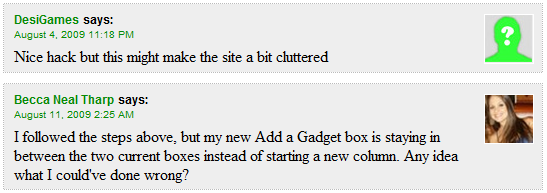
These days I was searching for problems of bloggers to solve when I noticed that none of Blogger blogs have the comment avatar images on the right side. Only Wordpress blogs have this feature to set the position of the avatar images. I`ve spent two days finding a solution when I decided to customize the entire comments area. I think my comments area is now pretty cool, but it`s difficult to install it. Please read with attention, follow the steps bellow carefully and BACK UP your template!

Here is an image about my comments area, later in this tutorial I will show you how to customize it:
Installing this comment area form
This is pretty difficult, read with attention!

1. Go to your Dashboard, Layout , Edit HTML and check in the Expand Widget Templates checkbox.

2. Find the following code (Ctrl + F and type in comments-block):
<dl expr:class='data:post.avatarIndentClass' id='comments-block'>
<b:loop values='data:post.comments' var='comment'>
<dt expr:class='&quot;comment-author &quot; + data:comment.authorClass' expr:id='data:comment.anchorName'>
<b:if cond='data:comment.favicon'>
<img expr:src='data:comment.favicon' height='16px' style='margin-bottom:-2px;' width='16px'/>
</b:if>
<a expr:name='data:comment.anchorName'/>
<b:if cond='data:blog.enabledCommentProfileImages'>
<data:comment.authorAvatarImage/>
</b:if>
<b:if cond='data:comment.authorUrl'>
<a expr:href='data:comment.authorUrl' rel='nofollow'><data:comment.author/></a>
<b:else/>
<data:comment.author/>
</b:if>
<data:commentPostedByMsg/>
</dt>
<dd class='comment-body'>
<b:if cond='data:comment.isDeleted'>
<span class='deleted-comment'><data:comment.body/></span>
<b:else/>
<p><data:comment.body/></p>
</b:if>
</dd>
<dd class='comment-footer'>
<span class='comment-timestamp'>
<a expr:href='data:comment.url' title='comment permalink'>
<data:comment.timestamp/>
</a>
<b:include data='comment' name='commentDeleteIcon'/>
</span>
</dd>
</b:loop>
</dl>
3. Replace the above code with the following one:
<div id='comments-block3'> <b:loop values='data:post.comments' var='comment'> <div id='comment-header'> <div expr:class='&quot;comment-author &quot; + data:comment.authorClass' expr:id='data:comment.anchorName'> <div id='comment-profile-image'> <b:if cond='data:blog.enabledCommentProfileImages'> <data:comment.authorAvatarImage/> </b:if> </div> <div id='comment-name-url'> <a expr:name='data:comment.anchorName'/> <b:if cond='data:comment.authorUrl'> <a class='comments-autor-name' expr:href='data:comment.authorUrl' rel='nofollow'><data:comment.author/></a> <b:else/> <a class='comments-autor-name'> <data:comment.author/></a> </b:if><a class='says'>says:</a> </div> <div id='comment-date'> <span class='comment-timestamp'> <a class='comment-permalink'> <data:comment.timestamp/> </a> <b:include data='comment' name='commentDeleteIcon'/> </span> </div> <div id='comment-body'> <b:if cond='data:comment.isDeleted'> <span class='deleted-comment'><data:comment.body/></span> <b:else/> <p class='comment-body'> <data:comment.body/></p> </b:if> </div> </div> </div> </b:loop> <div align='right' class='js-id-json14358458433' id='comments-form-script-js14876248' style='margin:0 10px 0 0; height:10px;'><a href='http://seo-tips-blogger.blogspot.com' rel='dofollow' style='font-family: Arial, Tahoma, Verdana; font-size:10px; color:#484848; text-decoration:none;'>BY SEO TIPS BLOGGER</a><!--comments-form json14358458433 - don`t edit!--></div> </div>
4. Find the following codes and remove them:
Your code may be a little different , search for the starting tags
#comments-block {
margin:1em 0 1.5em;
line-height:1.6em;
}
#comments-block .comment-author {
margin:.5em 0;
}
#comments-block .comment-body {
margin:.25em 0 0;
}
#comments-block .comment-footer {
margin:-.25em 0 2em;
line-height: 1.4em;
text-transform:uppercase;
letter-spacing:.1em;
}
#comments-block .comment-body p {
margin:0 0 .75em;
}
Customizing the comments area

Find the ]]></b:skin> line and place the following code BEFORE it!
#comments-block3 {
padding:0;
margin:0;
float:left;
overflow:hidden;
}
#comments {
padding:0;
margin:0;
}
#comment-name-url {
width:465px;
float:left;
}
#comment-date {
width:465px;
float:left;
}
#comment-header {
float:left;
border:1px dotted rgb(187, 187, 187);
padding:5px 0 5px 10px;
margin:5px;
background: rgb(238, 238, 238);
}
.avatar-image-container {
background:url(http://i645.photobucket.com/albums/uu178/coolboycsaba/no-avatar4.jpg);
width:48px;
height:48px;
float:right;
margin:5px 10px 5px 5px;
}
.avatar-image-container img {
border: 1px solid white;
width:48px;
height:48px;
}
a.comments-autor-name {
color:#088A08;
font-weight:bold;
font-size: 12px;
font-style: normal;
font-family: Arial, Tahoma, Verdana;
}
a.says {
color:black;
font-weight:bold;
font-size: 12px;
font-style: normal;
font-family: Arial, Tahoma, Verdana;
}
.says a:hover {
text-decoration: none;
}
a.comment-permalink {
color:#088A08;
font-weight:normal;
font-size: 10px;
font-style: normal;
font-family: Arial, Tahoma, Verdana;
}
1. Change the size of the avatar image
Customize the size of the comments to fit to your template:
First change the size of the avatar images:
.avatar-image-container {
background:url(http://i645.photobucket.com/albums/uu178/coolboycsaba/no-avatar4.jpg);
width:48px;
height:48px;
float:right;
margin:5px 10px 5px 5px;
}
.avatar-image-container img {
border: 1px solid white;
width:48px;
height:48px;
}
To change the size of the avatar images replace the red marked values to any number of pixels. Use the same at all red marked code lines.
Now change the size of the comments area:
#comment-name-url {
width:465px;
float:left;
}
#comment-date {
width:465px;
float:left;
}
The size of the comments area is depending on the size of the main-wrapper and on the size of the avatar image: e.g:
(main-wrapper)550px - (avatar image)48px - (paddings , margins and borders)37px = 465px

The padding and margins size is in bold because it`s always 37px, calculate the size of your comments area size and use the result as the value of the red marked code lines.

2. Change the colors
To change the background color of the comments change the red code line , to change the color of the border change the blue code line to any color.
#comment-header {
float:left;
border:1px dotted rgb(187, 187, 187);
padding:5px 0 5px 10px;
margin:5px;
background: rgb(238, 238, 238);
}
e.g:
#comment-header {
float:left;
border:1px dotted red;
padding:5px 0 5px 10px;
margin:5px;
background:#FF00FF;
To change the color of the comment author name change the red marked code line , to change the color of the comment posted date change the blue marked code line, to change the color of the says word change the green marked code line.
a.comments-autor-name {
color:#088A08;
font-weight:bold;
font-size: 12px;
font-style: normal;
font-family: Arial, Tahoma, Verdana;
}
a.says {
color:black;
font-weight:bold;
font-size: 12px;
font-style: normal;
font-family: Arial, Tahoma, Verdana;
}
a.comment-permalink {
color:#088A08;
font-weight:normal;
font-size: 10px;
font-style: normal;
font-family: Arial, Tahoma, Verdana;
}
3. Change the border types
Here are the border types to chose from, every comment have a border.
#comment-header {
float:left;
border:1px dotted rgb(187, 187, 187);
padding:5px 0 5px 10px;
margin:5px;
background: rgb(238, 238, 238);
}
Dotted
-this is the default , don`t change the red marked code

Dashed
-to use this type of borders change the value of the red marked word to dashed

Solid
-change the red marked word to solid

4. Change the No-Avatar image:
.avatar-image-container {
background:url(http://i645.photobucket.com/albums/uu178/coolboycsaba/no-avatar4.jpg);
width:48px;
height:48px;
float:right;
margin:5px 10px 5px 5px;
}
Change the URL (marked with red) with the URL of your image, please change it or download the image and upload it to your own host or photobucket , don`t steal my bandwidth!
Save your template!

Well done! If you have followed all the above steps carefully your comments area is pretty cool and it`s ready to use!
NOTE: Please don`t remove that small link at the end! Thanks my reading our blog!
Related tutorials:

How to remove / hide blogger navbar

August 16, 2009

blogger navbar The blogger navbar is on the top of every Blogger hosted blog. The Blogger support say`s the navbar can be removed only on FTP hosted blogs:

Unless you publish your blog via FTP, the Navbar cannot be disabled.

Why remove blogger navbar ?
  • Without the navigation bar your blog will look more professional and you will have a little more space. This is the main reason.

  • Why keep blogger navbar ?
  • If you keep the navigation bar your blog will receive a small amount of traffic from the "Next Blog" button.
  • If you remove the blogger navbar do it on your own risk , it`s breaking the TOS (Terms of Service) of Blogger, your blog can be banned , it`s true i have never heard about banned blogs from this reason.
  • To remove or hide the blogger navbar follow the bellow steps:

    1. Go to your blogger dashboard

    2. Go to Layout , Edit HTML

    3. Now we need just to insert a short CSS code in the blog template. Place the following code somewhere between <b:skin><![CDATA[/* and ]]>

    #navbar-iframe {display: none;}

    Like here:


    4. Save your template ,if you have followed the above steps the navbar will not be visible.
    Related tutorials:
    First of all do you know what i am talking about?
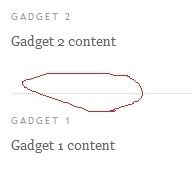
    I am talking about the separator line between gadgets , that dotted line what i have circled with red.
    That line was using to many space of my template so i have removed. It`s simple to remove it , here is how to:


    1. Go to Layout , Edit HTML

    2. Find the following code(With firefox press CTRL+F and tipe .sidebar or other piece of the code):
    .sidebar .widget, .main .widget {
    border-bottom:1px dotted $bordercolor;
    margin:0 0 1.5em;
    padding:0 0 1.5em;
    }
    3. Change the red highlighted number to 0 so it will look like this:
    .sidebar .widget, .main .widget {
    border-bottom:0px dotted $bordercolor;
    margin:0 0 0;
    padding:0 0 0;
    }
    NOTE: if you have more sidebars search for the following code too:
    .sidebar2 or 3 .widget, .main .widget {
    border-bottom:1px dotted $bordercolor;
    margin:0 0 1.5em;
    padding:0 0 1.5em;
    }
    4. Save your template.
    Related tutorials:
    Create your own 3 column blogger template by adding a second sidebar to your blogspot blog, you can place the sidebar in any side of the blog.
    By adding a second sidebar to blogger (blogspot) your blog will look more professional and you will have more space for your gadgets and widgets. Follow the bellow steps with attention , and first of all backup your template.

    1. Go to your Blogger dashboard
    2. Layout
    3. Edit HTML
    4. Find the sidebar-wrapper code, it looks like this:
    #sidebar-wrapper { width: 220px; float: $endSide; word-wrap: break-word; /* fix
    for long text breaking sidebar float in IE
    */ overflow: hidden; /* fix for
    long non-text content breaking IE
    sidebar float */}
    5. Add the following code right after it:
    #sidebar-wrapper2 { width: 220px; float: $endSide; word-wrap: break-word; /* fix
    for long text breaking sidebar float in IE
    */ overflow: hidden; /* fix for
    long non-text content breaking IE
    sidebar float */}
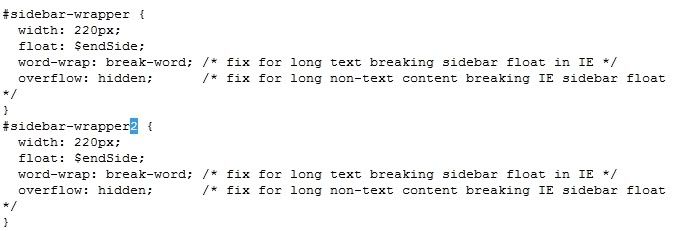
    So it will look like this:
    blogger blogspot sidebars
    6. Find the following code:
    <div id='sidebar-wrapper'>
    <b:section class='sidebar'
    id='sidebar' preferred='yes'>

    <b:widget id='BlogList1'
    locked='false' title='My Blog List' type='BlogList'/>
    <b:widget
    id='Label1' locked='false' title='Labels'
    type='Label'/>
    <b:widget id='Followers1' locked='false'
    title='Followers' type='Followers'/>
    <b:widget
    id='BlogArchive1' locked='false' title='Blog Archive'
    type='BlogArchive'/>
    <b:widget id='Profile1'
    locked='false'
    title='About Me'
    type='Profile'/>
    </b:section>
    </div>
    Note: Look for the piece of code what i have marked in red, the middle of
    the code is containig the first sidebar gadgets
    7. Paste after it the following code:
    <div id='sidebar-wrapper2'>
    <b:section
    class='sidebar' id='sidebar2' preferred='yes'>
    </b:section>
    </div>
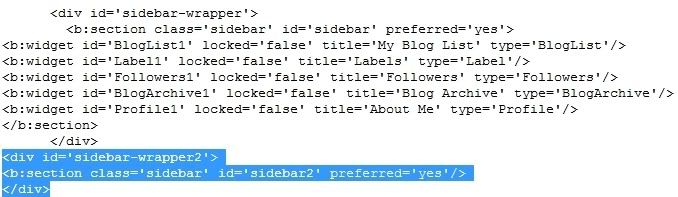
    It will look like this, but you have other gadgets: seo-tips-blogger blogspot sidebars
    8. Now edit the size of the template:
    Find the following code :
    #sidebar-wrapper {
    width: 220px;
    float: $endSide;
    word-wrap:
    break-word; /* fix for long text breaking sidebar float in IE */
    overflow:
    hidden; /* fix for long non-text content breaking IE sidebar float
    */
    }
    #sidebar-wrapper2 {
    width: 220px;
    float:
    $endSide;
    word-wrap: break-word; /* fix for long text breaking sidebar float
    in IE */
    overflow: hidden; /* fix for long non-text content breaking IE
    sidebar float */
    }
    The bold numbers are the size of the 2 sidebars , this is the standard
    size , but you can change them.

    Note: If you have the size of the sidebars we need to calculate:
    This is the size of the blog:

    #outer-wrapper {
    width: 660px;
    margin:0 auto;
    padding:10px;
    text-align:$startSide;
    font: $bodyfont;
    }

    This is the size of the header:

    #header-wrapper {
    width:660px;
    margin:0 auto 10px;
    border:1px solid $bordercolor;
    }

    And this is the size of the posts:

    #main-wrapper {
    width: 410px;
    float: $startSide;
    word-wrap: break-word; /* fix for long text breaking sidebar float in IE */
    overflow: hidden; /* fix for long non-text content breaking IE sidebar float */
    }

    These are the default sizes, now lets change them.

    The posts body size is 410 , the size of a single sidebar is 220.The entire blog size is 660, the header is the same.

    outer-wrapper = 660
    main-wrapper = 410
    sidebar-wrapper = 220
    paddings and borders = 660 - (410 + 220)
    Now add the second sidebar:

    outer-wrapper = 410 + 220 + 220 + 30 = 880
    So edit the outer and the header wrapper to 880
    If you use other numbers recalculate it, it`s simple.
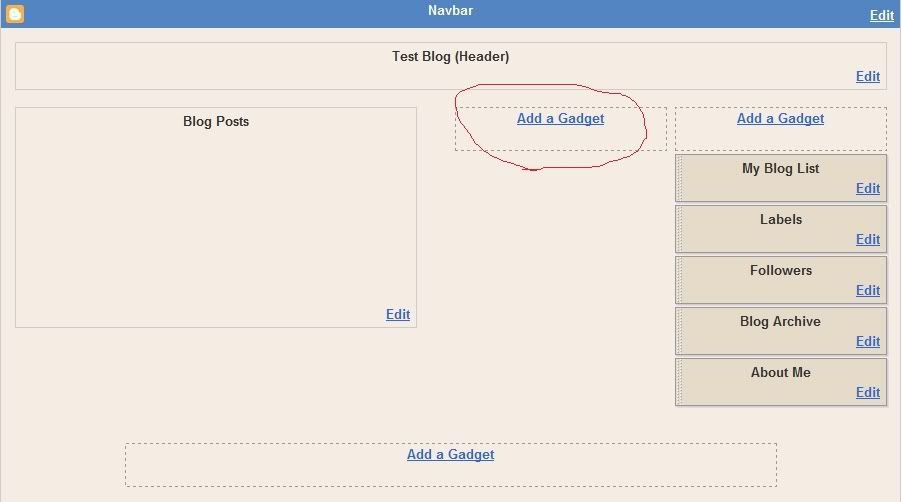
    9. Save your template and go to Page Elements If you have followed all the steps it will look like in this picture.2 sidebars
    10. Now just add some gadgets and please link to us! (Link to us with a text link or use the image code from my sidebar :D thx for your support)
    Please also read my new post about how to place one of the sidebars to the other side !
    Related tutorials:
    The meta keyword tag is a list of keywords for search engines. Unlike the meta description , we can generate automatically the meta keywords (We can generate automatically the meta description ,too but it`s better to write ). Usually the most relevant keywords of a post are in the title, so we can use the keywords from the title as meta keywords. It`s simple to do it , just follow these easy steps:

    1. Go to Layout , Edit HTML
    2. Find the following code:
    <b:include data='blog' name='all-head-content'/>
    3. Add the following code after it:
    <b:if cond='data:blog.pageType == &quot;item&quot;'>
    <meta expr:content='data:blog.pageName' name='keywords'/>
    </b:if>
    4. Save template
    NOTE: Google do not place much weight on these keywords but yahoo and some search engines are using them.
    Related tutorials: